
Save this after checkout
Do these before your first trade.
Your first win is not a trade. It is getting into the right rooms, finding the daily plan, and knowing what your tier actually includes.
Four steps, then trade.
Open Whop Hub
Use the same login from checkout. If you used the wrong email, fix that before asking for Discord access.
Enter Discord
Go straight to #start-here. Read #server-rules-and-disclosures before posting a support question.
Find your tier
Confirm Intro, VIP, or Pro channels are visible. Do not use Pro bot instructions unless you bought Pro.
Read today's plan
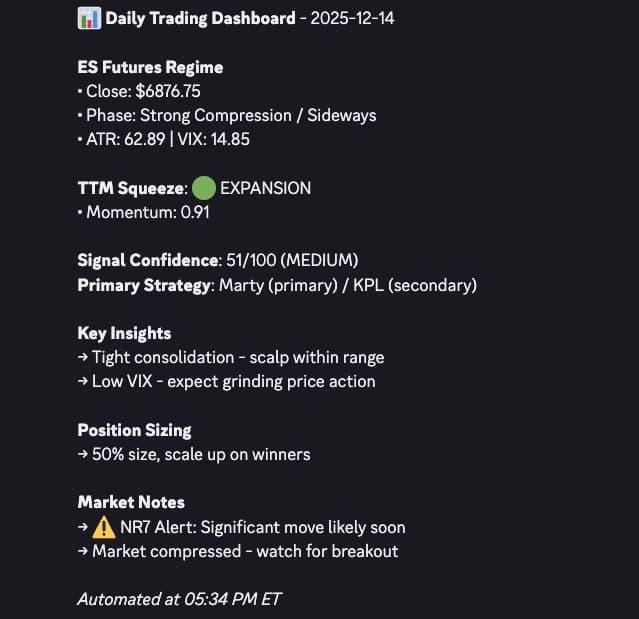
Open #daily-trade-plan before any trade. Treat it as the daily operating map, not a buy/sell alert.
Do not wander.
Most confusion comes from searching chat history instead of following the access path. Finish this before asking where anything is.
Confirm access, bookmark this page, then open the Discord from Whop Hub.
Read #start-here and #server-rules-and-disclosures. This prevents most avoidable support loops.
Open #daily-trade-plan, #video-library, #mini-course, and your tier channels.
Post one clear question in the right channel or use #ask-the-ai to find the exact lesson.
Leave day one oriented.
You do not need to master every tool on the first day. You need to know where the plan lives, what your tier unlocks, and what to avoid until you have SIM proof.
Build a repeatable daily trading routine before adding model context or automation.
Add model and scanner context to a daily plan you already understand.
Configure and validate one repeatable NinjaTrader automation workflow in SIM before live risk.
Use one path first.
YMI has a lot inside. Your first week is orientation, one setup, and one review loop.
Local setup checklist
Your first-week progress
Select the tier you purchased. This device-only selection does not grant or verify paid access.
Provider access status: unavailable on this page. Staff onboarding visibility: unavailable. This checklist is stored only in this browser and is not sent to YMI staff. Confirm billing in Whop and room visibility in Discord. If rooms are missing, use the verified support channel and include checkout email, order ID, tier, and a screenshot.
Day 5
Use one setup
Observe or paper trade one setup. Pro members use one SIM workflow.
Open #intro-trader-kplsDay 7
Choose your track
Stay with the current workflow until the next tier solves a real problem.
Open #supportOpen the right doors.
Intro
- #start-here
- #daily-trade-plan
- #intro-trader-kpls
- #pnl-and-trade-review
- #video-library
- #support
- Start Here: Your First 7 Days in YMI
- Young Money Investments University
VIP
- #start-here
- #daily-trade-plan
- #intro-trader-kpls
- #prediction-models
- #pnl-and-trade-review
- #video-library
- #support
- Start Here: Your First 7 Days in YMI
- Young Money Investments University
Pro
- #start-here
- #daily-trade-plan
- #prediction-models
- #pro-trader-kpls
- #pro-trader-chat
- #bots
- #trouble-shooting
- #pnl-and-trade-review
- #video-library
- #support
- Start Here: Your First 7 Days in YMI
- Young Money Investments University
How to read today's plan.
The plan is a map for decisions. It is not a promise, account instruction, or blind alert feed.
Opening Print: the session anchor. Use it to understand where the day started and whether price is accepting above or below it.
Key Price Levels: precomputed zones to watch. They are context for planning, not blind buy/sell alerts.
Market state: trend, range, event risk, or chop. Regime decides whether to press, reduce, wait, or review only.
Daily plan first, trade second. Define account, size, stop, and invalidation before live risk.
Pro setup path
The structured setup policy applies to members joining on or after 2026-07-26. Existing members retain any documented setup or support commitments made before this date unless changed by direct agreement.
Common support shortcuts
Rooms missing
Confirm your Whop email matches checkout. If still blocked, post in support with checkout email, Whop order ID, tier, and a screenshot of missing channels.
Course confusion
Use Whop Hub, #video-library, and #mini-course. Do not search random chat history first.
No KPLs showing
Load 40+ days of chart data, reload historical data, then wait for LevelsES/LevelsNQ to calculate.
Bot not firing
Check account, enabled status, time window, data feed, and whether strategy was launched from Control Panel.
Template import mistake
Templates are XML files. They are not imported like NinjaScript add-ons.
Copy this when you need help
I paid for [tier]. My checkout email is [email]. My Whop order ID is [order]. I cannot see [missing channels]. Screenshot attached.
I just joined Intro. I can access Whop, but I need help finding the course, ES/NQ KPLs, or today's plan.
I just joined Pro. I have NT8 installed, a data feed connected, and my Machine ID ready. I need setup approval.
Safety
Cameron does not trade for you, ask for account control, or DM investment offers. Use official links, verify staff accounts, and report impersonators.
Terms reminder
Intro trial: cancel in Whop before the trial converts. VIP and Pro: no trial; cancel future billing in Whop when done. Paid access already delivered is final and non-refundable. Trading risk remains yours.
Back to membership pathRooms open. Plan's posted. Go read it.
Finish the checklist, then follow the membership path from wherever you are today.